
Remote Check Deposits (Mobile Checks)
Enable customers to deposit paper checks directly from their mobile device—without visiting a branch.
Mobile Check Deposit allows customers to deposit physical checks by capturing images of the check and submitting them digitally.
The system processes these deposits through a series of automated and manual checks to ensure:
- Image quality and compliance
- Check authenticity
- Fraud prevention
- Successful bank clearing
How It Works
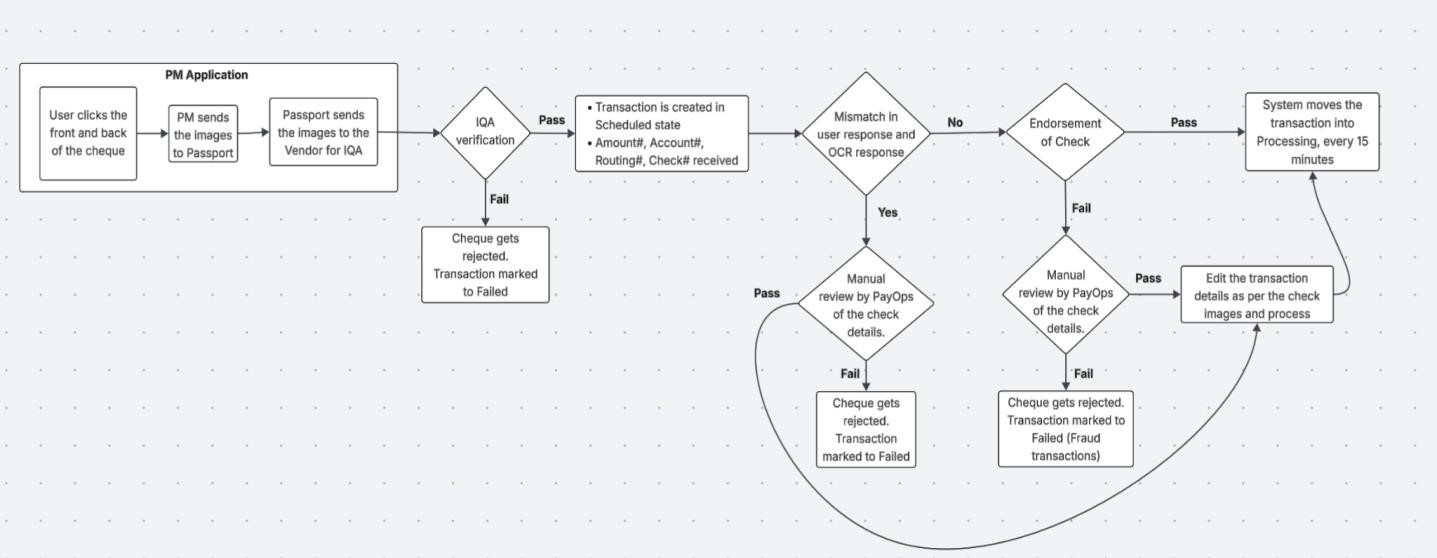
- Customer captures check images (front & back) and enters the deposit amount.
- Client app sends a request to PCE's Create Transaction API with images and optional metadata.
- Next checks are forwarded for Image Quality Assessment (IQA) and endorsement (~2-5 seconds):
- Image Quality Assessment (IQA):
- Check the image clarity, Check 21 compliance, MICR visibility
- Extract amount, account, routing, and check number
- Endorsement:
- If vendor endorsement (default) → the system electronically endorses the checks,
- If you want to enable customer-endorsement or prefer your electronic endorsement → the checks submitted should be endorsed by you. Priority System will skip the check endorsement step.
- Image Quality Assessment (IQA):
- Manual Review – triggered by information mismatches, duplicates, fraudulent or endorsement issues. Priority Ops resolves mismatches, duplicates, or fraud suspicions by accepting or rejecting the checks
- Checks are sent to the bank for final clearing approximately every 15 minutes. The instructions should be received prior to cut off period to be processed for the same day. Reach out to your AM to know more on the cut off times. (The bank can still reject for non-image reasons like NSF, fraud, duplicate MICR issues).
- Funds realization: Typically, 5–7 business days after deposit; bank may still return items.
Check Deposit Flow (Step-by-Step)
This section outlines the end-to-end flow of a check deposit, from submission to final settlement. It highlights each stage of processing, including validations, bank clearing, and potential return scenarios, to help you understand how a check transaction progresses through the system.
Step 1: Image Capture
The customer captures both the front and back of the check. Ensure the MICR data of the check is not a duplicate of a previously successfully processed check. The customer
- enters the amount to be deposited,
- (Optional) Provides
checkType,checkNumber,auxiliaryOnUs,onUs(required ifcheckTypeis passed)
Key Points:
- It is recommended to leave optional fields blank, allowing the system to automatically extract and validate details during Image Quality Assessment (IQA) in Step 3.
- A check may not be accepted if:
- Not in USD
- Already deposited
- Not readable or poor image quality
- Missing required details
- Older than 6 months or post-dated
Customer-side Image Validations
Before submission, ensure images meet the following requirements:
| Requirement | Details |
|---|---|
| Compliance | Follow Check 21 rules; ensure MICR line is fully visible, and that the amount in words matches the numeric amount. |
| Format | JPG/JPEG only |
| Resolution | Minimum of 200 dpi to ensure clarity for bank processing |
| Image Clarity | Image must be in focus, with no blurring, shadows, no cut-off edges, properly aligned on a contrasting background, all four corners visible |
| File Size | Combined size of front and back image < 3MB; each side ~1.4MB |
| Capture Process | • Place the check on a dark, non-reflective background • Ensure the entire check is visible with all four corners and edges clearly shown • Hold the device steady and allow the camera to focus before capturing • Use good lighting and avoid glare • For money orders, remove any detachable receipt section before capturing • Ensure all details (including endorsement, if present) are legible |
Failure to meet these requirements will likely result in transaction failures during IQA (Step 3).
Step 2: Submit Deposit Request
Once images meet the requirements, use the POST /v1/customer/id/{id}/transaction (or externalId) API endpoint to initiate a transaction, including following key parameters:
| Field | Required | Description |
|---|---|---|
amount | ✓ | Amount to be deposited. Must be greater than zero. |
method | ✓ | Payment method. For mobile check deposits, use CHECK. |
type | Optional | Transaction type. REGULAR for standard deposits. |
destination.account.id | ✓ | Unique identifier of the account where funds will be credited. |
purpose | ✓ | Description of the transaction for reference (e.g., “Mobile check deposit”). |
Check Images (Mandatory)
| Field | Required | Description |
|---|---|---|
linkedDocument | ✓ | List of documents associated with the transaction (front and back images). |
linkedDocument.purpose | ✓ | Purpose of the document. Use CHECK_DEPOSIT. |
linkedDocument.document.type | ✓ | Type of image being uploaded: CHECK_IMAGE_FRONT or CHECK_IMAGE_BACK. |
linkedDocument.document.base64encodedContent | ✓ | Base64 encoded content of the check image. |
linkedDocument.document.name | Optional | Name of the uploaded file for reference. |
Check Processing Details (Conditional)
| Field | Required | Description |
|---|---|---|
processingDetail.isEndorsed | Optional | Indicates whether the check images are already endorsed. Default is false. Possible Values: • true – Use when submitting self-endorsed checks (manual details required)• false – System extracts details automatically via IQA |
processingDetail.checkType | Conditional | Specifies the type of check. Required when isEndorsed = true. Possible Values: • BUSINESS_CHECK : For corporate/business-issued checks• PERSONAL_CHECK : For individual-issued checks |
processingDetail.routingNumber | Conditional | The 9-digit routing number printed on the check. Required if checkType is provided or if isEndorsed = true. |
processingDetail.accountNumber | Conditional | The bank account number associated with the check. Required when isEndorsed = true. |
processingDetail.checkNumber | Conditional | The check number (typically 1–4 digits). Required when isEndorsed = true. |
processingDetail.onUs | Conditional | MICR field containing account and check number details. Required when checkType is provided. Format: • Personal checks: /accountNumber/checkNumber• Business checks: accountNumber/ |
processingDetail.auxiliaryOnUs | Conditional | MICR field used only for business checks, appearing before the routing number. Required for BUSINESS_CHECK. Example: >785451< |
If
processingDetail.isEndorsedisfalse, you can omit all MICR-related fields and allow the system to automatically extract check details during Image Quality Assessment (IQA).
Upon receiving the deposit request, the system performs a series of validations before the transaction is queued:
- Ensures the deposit amount does not exceed the limits configured for the customer’s account, the request is immediately rejected with an error response.
- Confirms the provided destination account is a valid account and is in an
ACTIVEstatus. If the account is inactive, marks the transaction asPENDING.
If all validations succeed, the transaction request is accepted. The transaction status is set to SCHEDULED, and the Image Quality Assessment (IQA) process begins immediately.
Self-Endorsed Check Processing
If you prefer to electronically-endorse the checks instead of using Priority vendor endorsement, you must request your account manager to enable self endorsement for your program.
Self-endorsed checks are typically used by programs that operate their own check-scanning services. These services are integrated with their software, which performs Optical Character Recognition (OCR) and generates Image Cash Letter (ICL) data.
Requirements
When self-endorsement is enabled, the deposit submission request must include the specific details under checkVerification node in the API Payload. The field and rules are as follows:
Mandatory fields:
isEndorsedmust betruecheckTypemust be eitherBUSINESS_CHECKorPERSONAL_CHECKcheckNumberonUs(required ifcheckTypeis provided)
If any of these fields are missing or empty, the system will return an error.
Format Guidelines
For Personal Checks
- Format:
/AccountNumber/CheckNumber
For Business Checks
- Format:
AccountNumber/auxiliaryOnUs(auxillaryOnUsis required for business checks)
Example: Business Check (MICR Data)
785451<   123456789   0012345678   x`   000602
└─ Aux On-Us   └─ Routing #   └─ Account #   └─ Check #
Example: Personal Check (MICR Data)
9987776655   123456789   0012345678   602
└──── On-Us   └─ Routing #   └─ Account #
Step 3: Image Quality Assessment (IQA)
IQA is a fully automated process that usually completes in ~ 2-5 seconds. The system checks image quality, Check 21 compliance, MICR accuracy as per standards. System then
- Extracts key details: Amount, Check #, Account #, Routing #
- Matches extracted details with any manual input shared at the time of creation.
Checks may not be accepted if they are:
- in a currency other than US Dollars
- have already been deposited
- not readable
- have a very light ink which is not readable on scanning.
- checks without a date, have been post-dated, or are more than 6 months old
Possible Outcomes:
Use the GET /v1/customer/id/{id}/transaction/id/{id} (or externalId) API endpoint or subscribe to the transaction.update webhook to get this information instantly.
VERIFIEDCheck Verification status- Provided no optional details are shared → the extracted details are treated as the source of truth.
- Proceeds to endorsement step (Step 4)
FAILEDCheck Verification status-
FAILEDwith reason included in theprocessingDetail.checkVerification.statusReasonnode.
Check Verification Status and Status Reasons:Status
Status Reason
PENDING
PENDING_VERIFICATION
VERIFIED
DOCUMENT VERIFIED
FAILED
- IQA Failure
- Processing error
- Cannot read check. Please retake the photo with steady hands, good lighting, and all four corners visible.
- The MICR line has an intrusion.
- Cannot find check in the image. Please retake. Ensure focus and four corners are visible.
- Submitted 2 images of the front of the check. Please retake both front and rear photos.
- Blurred image. Hold the camera steady or position it further away.
- Cannot read account data. Focus and include all corners in the image.
- Rejection based on manual review.
- INCORRECT_AMOUNT
- INCORRECT_ACCOUNT_NUMBER
- INCORRECT_ROUTING_NUMBER
- INCORRECT_CHECK_NUMBER
- OTHERS
-
Transaction status:
FAILED -
If optional details (mentioned in Step 1) were provided and do not match extracted values → IQA Verification fails → Transaction sent for manual review by Priority Ops (Step 5).
-
Customer should be asked to take corrective actions and initiate a new transaction in such cases by recapturing both the images.
-
Step 4: Submitted for Endorsement
After IQA verification, the system initiates endorsement:
- Vendor Endorsement (Default) – The check is electronically endorsed by the vendor system and sent directly to endorsement verification.
- Self-Endorsement – If this option is enabled for your integration, this step is skipped.
The transaction will go for manual review if the endorsement process detects any of the following:
- Presence of endorsement (for self-endorsed deposits).
- Duplicate MICR line data across previously processed checks.
- Signs of alteration or fictitious checks.
Step 5: Manual Review
The Priority Operations team inspects all the flagged transactions. Typical triggers include:
- Discrepancy between extracted MICR data and customer-supplied values during IQA verification.
- Duplicate deposits from the same or different customers.
- Possible fraud indicators.
During manual review, Ops team evaluates each case and take one of the following actions:
- If customer input mismatches actual check details → Reject with appropriate reason.
- If extracted data mismatches actual check → Correct vendor data and approve.
- If suspected fraud (duplicate, illegitimate check) → Reject with appropriate reason
Once review is completed:
- On Approval, transaction moves to
PROCESSINGstatus, and sent to the bank (Step 6) - On Rejection, transaction moves to
FAILEDstatus with statusReason explaining the cause.
Use the GET /v1/customer/id/{id}/transaction/id/{id} (or externalId) API endpoint or subscribe to the transaction.update webhook to get this information instantly.
You can opt out of the manual review by the Priority Ops for IQA verification checks due to information mismatches, in which case the transaction will be marked as
FAILEDwithin 2-5 seconds and you can request the customer to recapture the image/details and share.Endorsement failures are always manually reviewed by Priority Ops to identify fraudulent cases.
Step 6: Bank Processing & Fund Realization
Once a check passes IQA and endorsement verification, it is transmitted to the bank in batch files. These batches are processed by Priority and sent to the bank approximately every 15 minutes, ensuring timely clearing submissions.
- While the bank attempts to post the transaction to the issuing account, the transaction in PCE remains in
PROCESSINGstate while awaiting confirmation from the bank. - If bank accepts the deposit, funds are typically made available to the customer within 5–7 business days after the deposit date. This time frame can vary depending on bank processing times, weekends, and public holidays.
- Even after a check has been accepted and posted by the bank, it may still be returned if issues arise, such as
- NSF (Non-Sufficient Funds)
- Stop Payment instructions
- Closed or Frozen Account at the issuing bank
Return Handling
During the 5–7 business day clearing period, the check is subject to bank returns.
a. If the check is returned within this period:
- The transaction status is updated to
FAILED, along with a correspondingstatusReason. - No funds are credited to the customer’s account.
b. If no return occurs within the 5–7 business day window:
- The transaction is marked as
COMPLETED. - A credit ledger entry is created in the customer’s account to reflect the deposited amount.
c. If the check is returned after the transaction is marked as COMPLETED :
- The transaction continues to remain in COMPLETED status, with an updated return statusReason.
- A debit entry is created in the customer’s account to reverse the previously credited amount.
- Return details are recorded and made available via the Return List API for reconciliation and reporting purposes.
Check Transaction Lifecycle Status
| Status | Description and Possible Reasons |
|---|---|
SCHEDULED | Default on creation. The transaction has passed initial validation (IQA, endorsement if applicable) and is queued for further checks or transmission to the bank. Status Reason: • On User Request |
PENDING | Transaction could not progress because one or more processing conditions were not met — e.g., destination account is not in ACTIVE status or other pre-checks are incomplete. Status Reason: • Customer Suspended • Account Inactive • Account Blocked • Account Closure Initiated • Account Closed |
PROCESSING | Transaction has been approved (including manual review if required) and sent to the bank for clearing. Status Reason: • Processing In Transit |
COMPLETED | Funds have been successfully deposited, and no return has been received within the defined return window (5–7 business days). Status Reason: • Processed by System |
FAILED | Transaction could not be processed due to validation errors, endorsement issues, IQA mismatches, suspected fraud, or bank return within the return window. Status Reason: • Check Verification failed • Stop Request on Cheque • Account Closed • Account Blocked/Frozen • Non-Sufficient funds (NSF) in external account |
CANCELLED | Transaction was manually cancelled by the customer, merchant, or system before bank processing began. Status Reason: • On Customer Request • Incorrectly Created • Insufficient Funds • Others |
Best Practices
- Capture images in good lighting with no glare
- Ensure all four corners are visible
- Avoid manual data entry unless required
- Prompt users to retry immediately on failure
- Clearly communicate processing timelines (5–7 days)